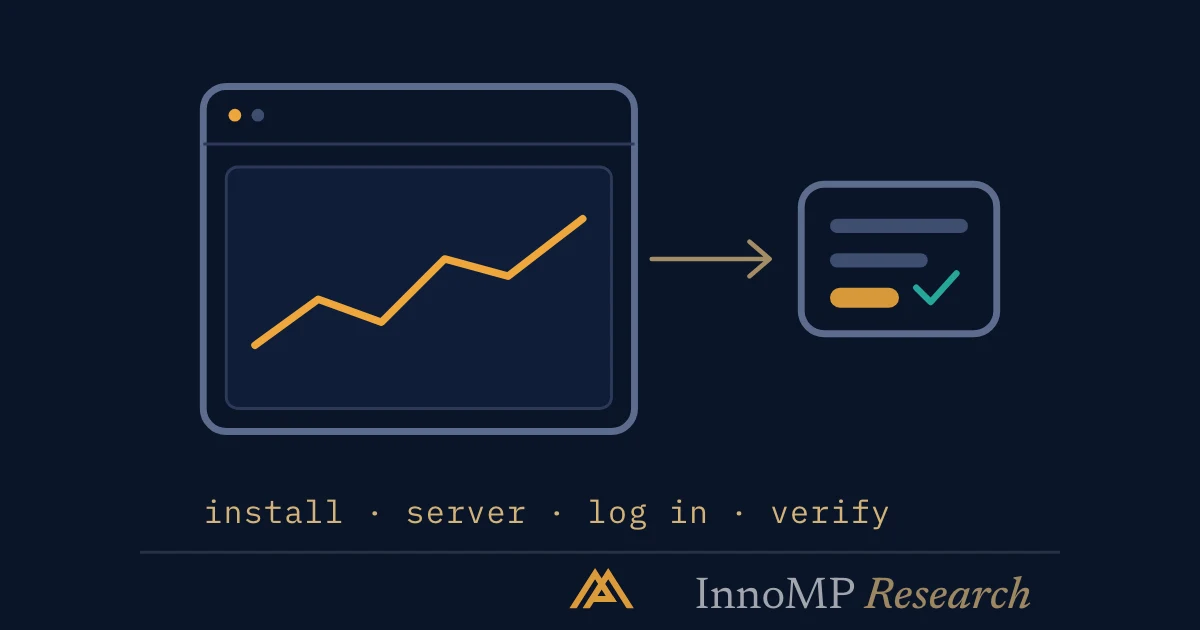
Connecting MetaTrader 5 to an InnoMP account takes four steps. Download MT5 from the link in the InnoMP client portal, which preloads the correct broker server list. Collect the three credentials the portal shows when the MT5 account is created: login (the trading account number, not the portal email), the trading password, and the exact server name. Log in through File then Login to Trade Account. Verify that the title bar shows the account and server and that prices are ticking.
MetaTrader 5 is the platform of choice for anyone running expert advisors, custom indicators, or simply years of accumulated muscle memory. Connecting it to an InnoMP account takes a few minutes; this guide covers the setup and the handful of settings worth changing before the first order.
Step 1 — Get the terminal
Download MT5 from the link in the InnoMP client portal. Starting from the portal link matters: it preloads the correct broker server list, which removes the most common source of login failure before it happens.
Desktop builds exist for Windows and macOS, and the mobile apps are on the official stores.
Step 2 — Find your credentials
An MT5 connection needs three pieces, all shown in the client portal when the MT5 account is created:
- Login — the trading account number (not your portal email)
- Password — the trading password for that account
- Server — the exact server name for your account type
The account number and the portal login are different identities. Mixing them up produces the “Invalid account” error that accounts for most failed first attempts.
Step 3 — Log in
In the terminal: File → Login to Trade Account. Enter the number, password, and pick the server from the dropdown — matching the portal’s server name exactly, since brokers run multiple servers and a near-match is a miss.
A successful connection shows the account number and server in the terminal’s title bar, and live prices begin ticking in Market Watch.
Step 4 — Verify before trading
Thirty seconds of checks:
- Prices are moving in Market Watch during market hours
- The account balance shown matches the portal
- A demo order — if this is a demo account, place and close a small trade to confirm execution end to end
Key takeaway Test the full order cycle on demo before the first live order. The moment to discover a platform quirk is not while a position is open.
Settings worth changing on day one
Show all instruments. Market Watch shows a subset by default — right-click → Show All reveals the full list, then hide what you do not follow.
One-click trading: leave it off at first. Speed is only an asset once the order flow is second nature. The confirmation dialog is a beginner’s friend.
Charts on the right timeframes. Save a profile once your layout is set — MT5 profiles are local to the machine, unlike WebTrader’s server-side layouts, so a backup of the profile folder saves future pain.
Enable trade notifications so fills and stop-outs reach you when the terminal is closed.
If you run expert advisors
Algorithmic trading has to be enabled twice: globally (Tools → Options → Expert Advisors → Allow algorithmic trading) and per-chart (the EA’s own settings when attached). An EA that sits on a chart with a sad face icon is missing one of the two.
Backtest on the strategy tester against InnoMP’s actual contract specifications — EUR/USD in 100,000-unit contracts, gold in 100-ounce contracts, minimum size 0.01 lots — because a strategy tuned to someone else’s specification is a different strategy on yours.
MT5 on InnoMP also supports hedging (opposing positions on the same product where supported) and connects to the MQL5 community for copy-trade strategies — the analytical toolkit runs to 38 indicators, 22 analytical tools and 46 graphical objects.
MT5 or WebTrader?
If you automate, MT5 — the ecosystem is the argument. If you trade discretionarily, the comparison usually lands on WebTrader for analysis with the app for monitoring. Both roads lead to the same account; the platform is the steering wheel, and position sizing is still the brakes.
- An MT5 connection needs three pieces from the InnoMP client portal: login, trading password and the exact server name.
- The MT5 login is the trading account number, not the portal email; mixing them produces the Invalid account error.
- Downloading MT5 from the portal link preloads the correct broker server list.
- A successful connection shows the account number and server in the terminal title bar, with live prices in Market Watch.
- MT5 is the InnoMP platform for expert advisors and custom indicators.